AMAPI only: Managing certificates with the KACE Cloud AMAPI Companion App
Digital certificates allow administrators to identify devices and grant them access to your organization's resources. Unlike the EMM-based KACE Agent, that supports certificate management, the Google Android Agent, used in AMAPI enrollments, does not support this feature. The KACE Cloud AMAPI Companion App extends the Google agent's functionality, allowing you to manage certificates on AMAPI-enrolled devices. This app must be installed on any Android devices that are enrolled through AMAPI and require the use of certificates.
To install the AMAPI Companion App, start by importing it from Google Play to the KACE Cloud Apps Library, and then add it to the applicable Android devices.
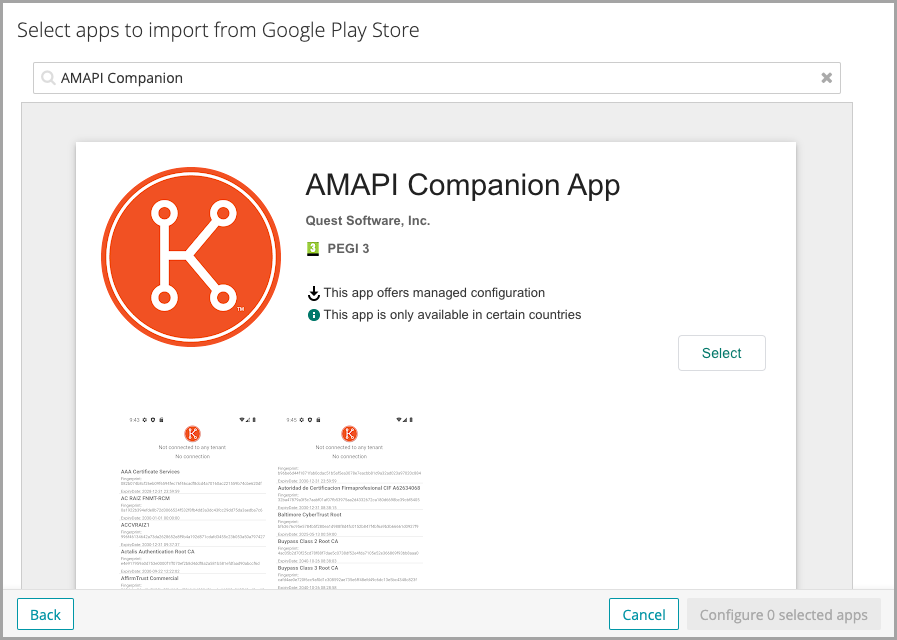
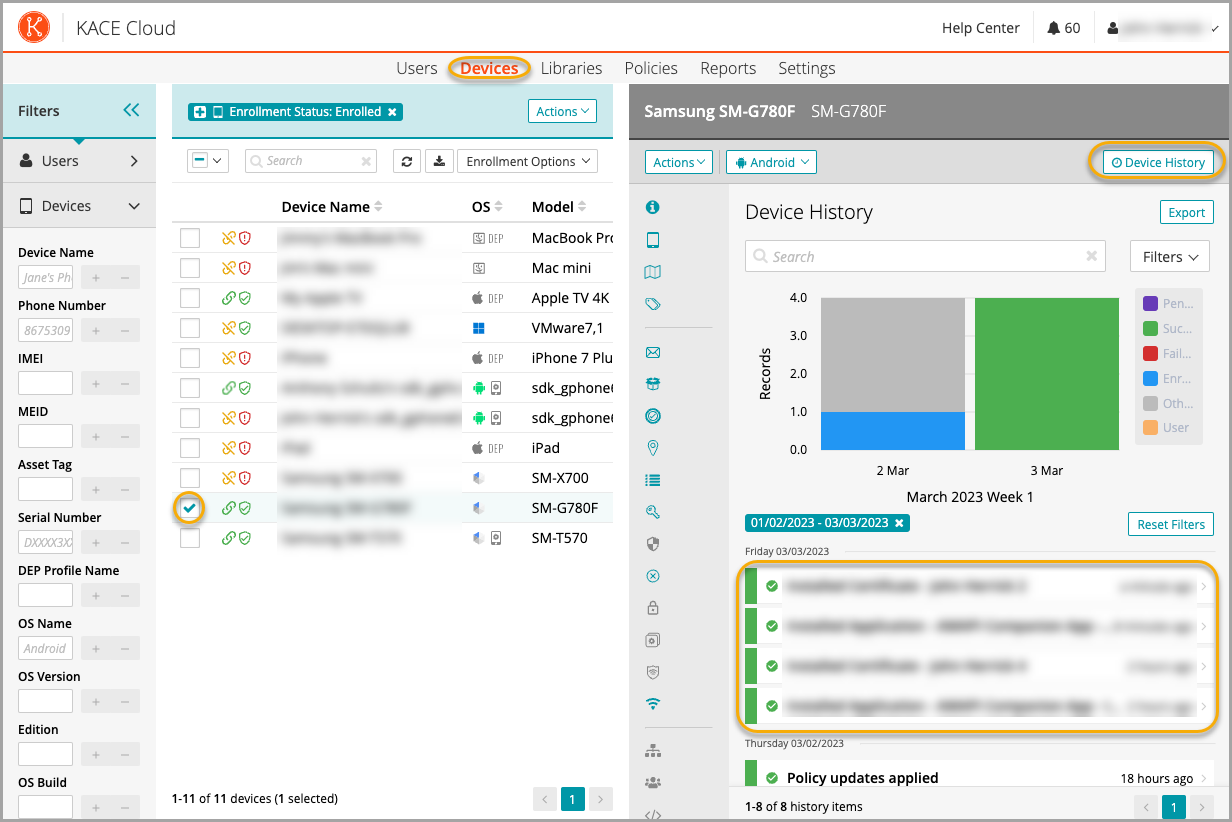
When the AMAPI Companion App is installed and started on a managed device, certificate management works in the same way as it does for other device types. Certificates can be selected from the KACE Cloud Library and assigned to devices. The command progress is displayed in the device history.
Once installed, the app must be started to get registered with KACE Cloud. After registration, the app can run in the background.This is how a freshly installed AMAPI Companion app looks like on a work profile enrolled AMAPI device:
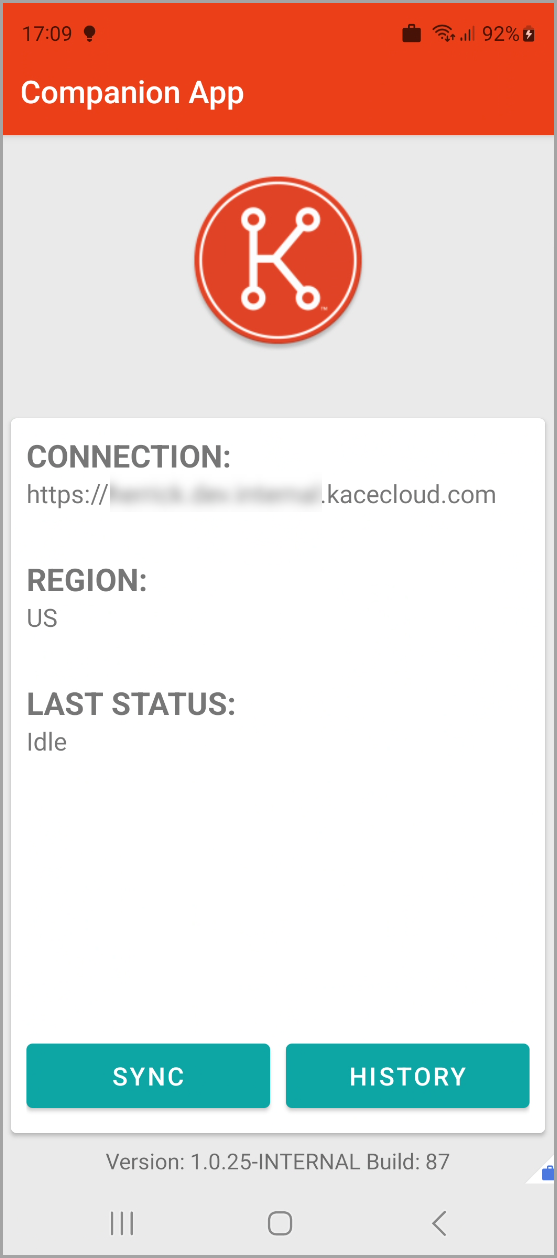
The following information appears in the app when you start it for the first time:
- CONNECTION: Indicates that the app is connected to the tenant.
- REGION: The KACE Cloud region the app uses.
- LAST STATUS: The current app status.
- SYNC: Allows the device user to manually check in to KACE Cloud for certificate commands.
- HISTORY: Tapping this button populates the Connection History log. The log can store a maximum of 20 items. When you tap this button, the following view appears:
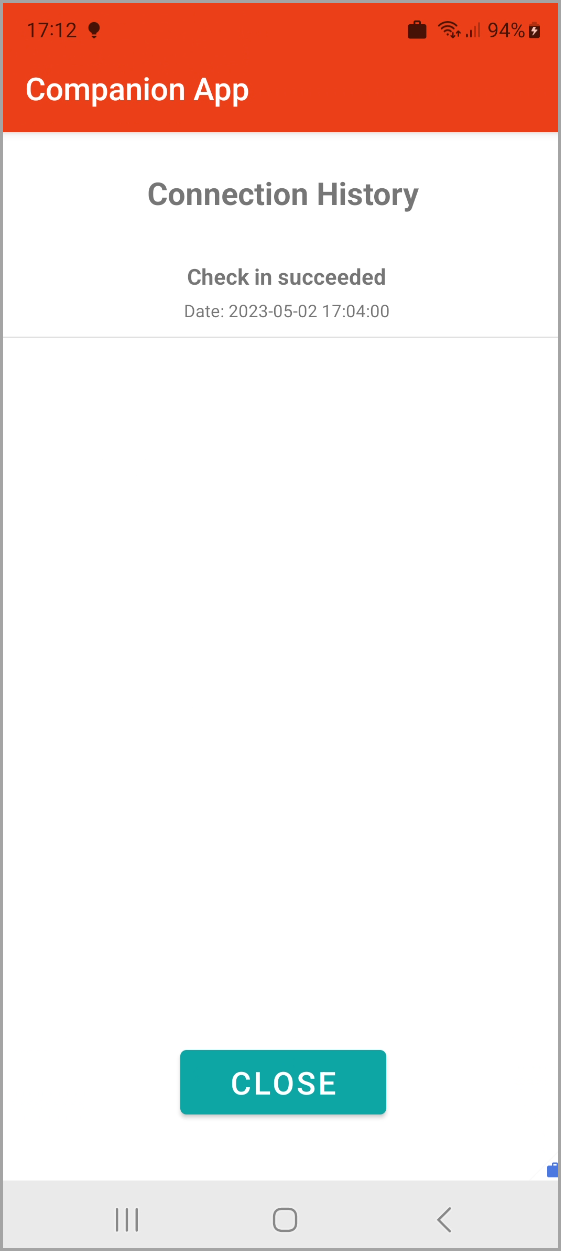
In KACE Cloud, the device history information is populated as with any other device that supports certificate management. For more details about using KACE Cloud for certificate management, see Managing certificates.
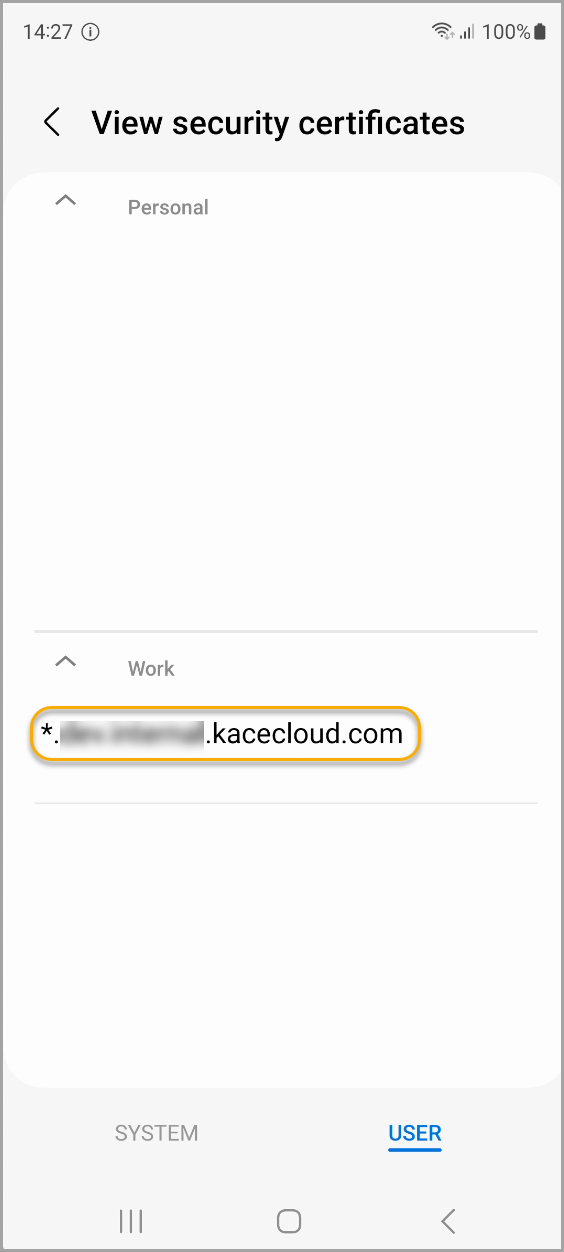
On managed Android devices, certificates can be accessed through the Android Settings app, under Security and privacy > Other Security Settings. The following example shows a KACE Cloud SSL installed in the Work Profile:
|
|
NOTE: Enrolled Work Profile devices seem to ignore self-signed certificates. |

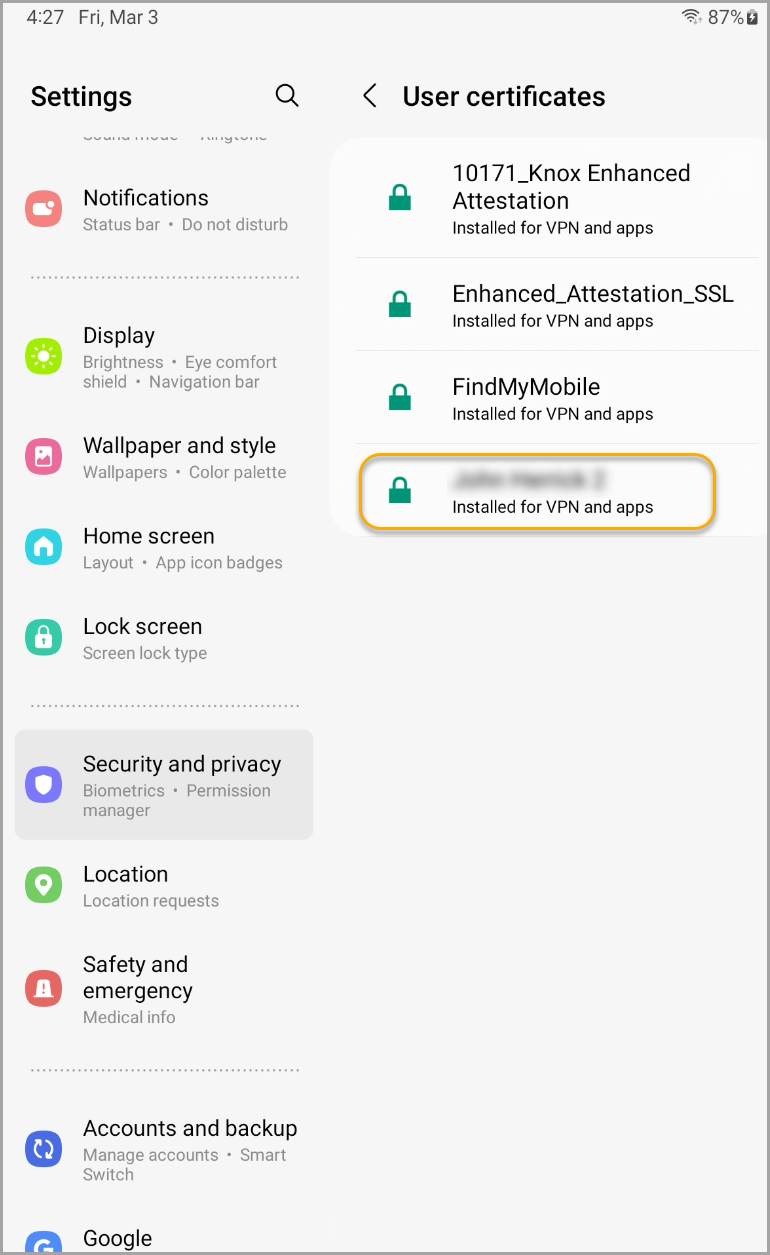
Self-signed certificates are supported on Fully Managed devices. The following example shows a self-signed certificate installed on a Fully Managed device:
Troubleshooting certificate errors
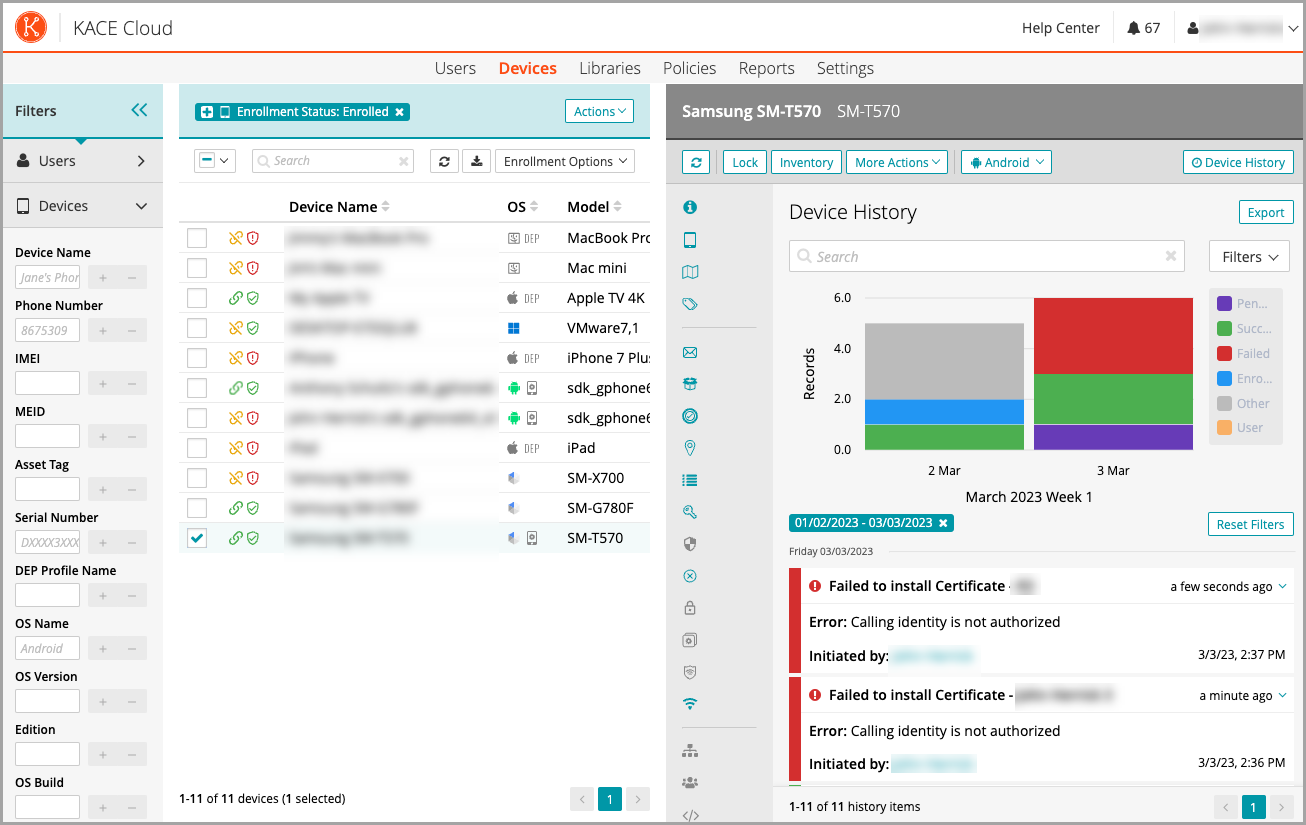
Any errors installing a certificate on the app will be uploaded to KACE Cloud and recorded in the command response and device history. In the following example, a Fully Managed device is returning an Android permissions error and this is recorded in the Device History. To resolve this particular issue, reinstall the AMAPI Companion App in the KACE Cloud Apps Library.